Onboarding guide · Chapter 1
Find a gauge
Everyone
Open the menu (☰ at the top left) and choose Map. Every gauge FlowAi shows is on it, no sign-in needed.
- Type a gauge name or station ID into Search gauges... in the header. Accents and punctuation don't matter.
- Or narrow the map with All Sources, All provinces, Observation Only and Forecast Available.
- Markers marked F have a forecast; O are observation only. The colour is the flow status, from Below median (< P50) to High (> P90).
- Click a marker and then View Details → to open the gauge page.
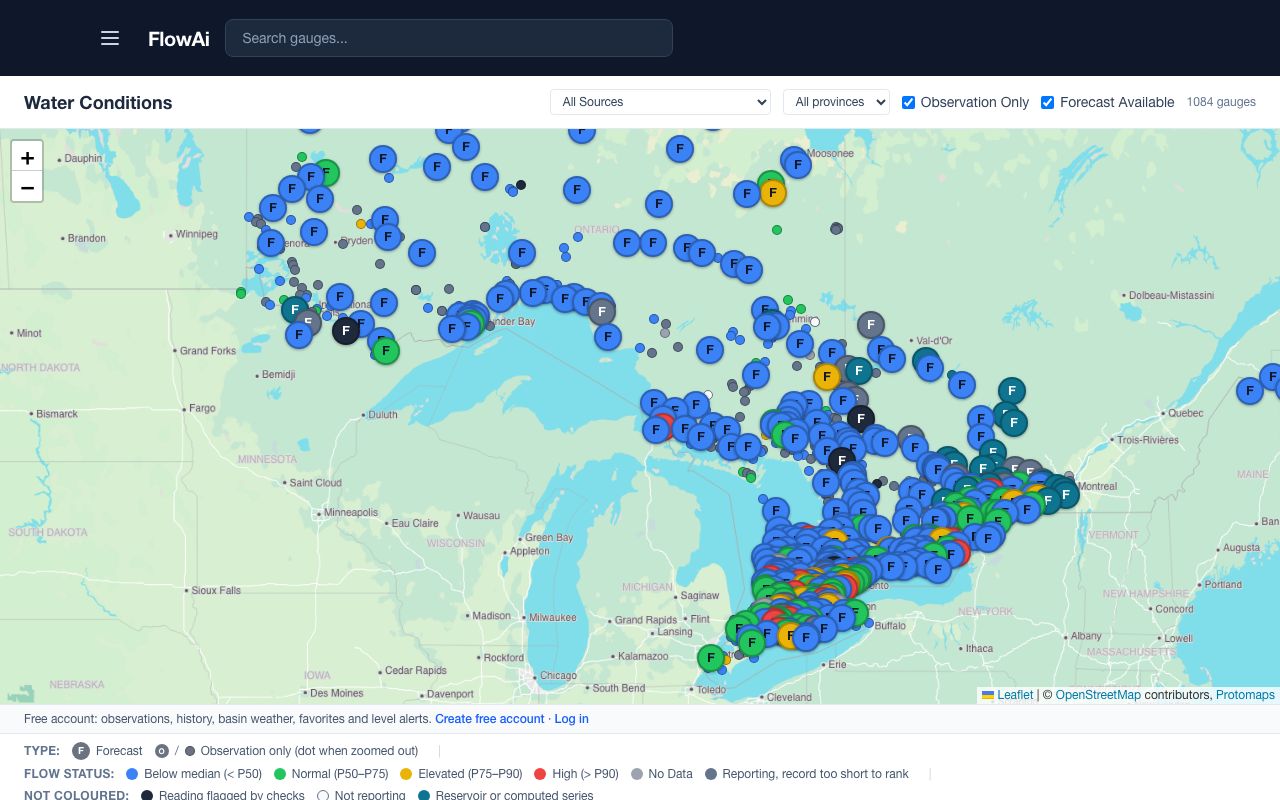
Grey markers are not coloured on purpose: the reading was flagged by checks, the gauge is not reporting, or the series is a reservoir or computed series. The Gauge Directory lists every gauge by province.