Onboarding guide · Chapter 10
Export data
Commercial
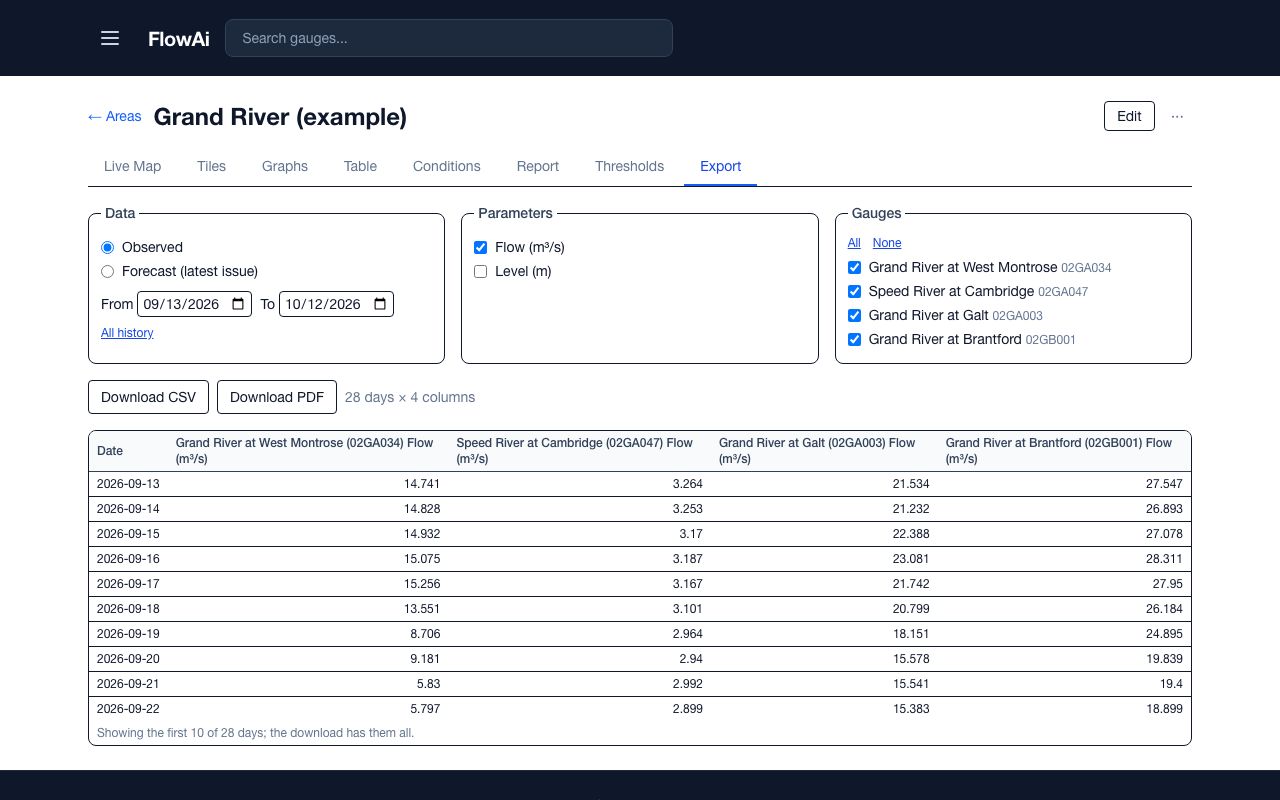
- In an area, open the Export tab.
- Under Data, choose Observed (with From and To dates, or All history) or Forecast (latest issue).
- Tick the Parameters and Gauges. For one gauge, tick only that gauge.
- Press Download CSV or Download PDF.
Each CSV starts with comment lines (#) holding the disclaimer, the export time, the forecast issue times, data credits and notes such as a level forecast's error. Keep them with the data if you pass it on.